IVAAP Configuration
Introduction
This section of IVAAP documentation will go into in-depth configuration details regarding IVAAP components.
Backend
Adminserver
Adminserver configuration can be found in two places in values.yaml; .Values.secrets.type.k8sSecrets.adminserver-conf-secrets and .Values.configmap.adminserver. The values in .Values.configmap.adminserver are default values that can be modified, and other environment variables can be added here.
The values in .Values.secrets.type.k8sSecrets.adminserver-conf-secrets are kubernetes secrets, and all values under the secrets section need to be base64 encoded. Plain text values may be used for environment variables under the configmap section as these are utilized more as flags or values that do not need to be secrets.
For steps on how to configure kubernetes secrets, refer to General Helm Configuration Guide's section on native kubernetes secrets.
PostgreSQL Connection and Configmap
Below is required configuration for the Adminserver. All of the secrets are required for PostgreSQL database connection. The two variables shown under .Values.configmap.adminserver are required default values that should not be modified under normal circumstances.
secrets:
  type:
    k8sSecrets:
      adminserver-conf-secrets:
        IVAAP_SERVER_ADMIN_DATABASE_HOST: "database_hostname"
        IVAAP_SERVER_ADMIN_DATABASE_NAME: "database_name"
        IVAAP_SERVER_ADMIN_DATABASE_PORT: "database_port"
        IVAAP_SERVER_ADMIN_DATABASE_USERNAME: "database_username"
        IVAAP_SERVER_ADMIN_DATABASE_ENCRYPTION_KEY: "database_key"
        IVAAP_SERVER_ADMIN_DATABASE_ENCRYPTED_PASSWORD: "database_encrypted_password"

configmap:
  adminserver:
    IVAAP_COMMON_ADMIN_SERVER_HOST: "http://localhost:8080/IVAAPServer/"
    IVAAP_COMMON_BACKEND_SERVER_HOST: "http://ivaap-backend-service/ivaap/"
IVAAP_SERVER_ADMIN_DATABASE_NAME=<database_name>?sslmode=require
If deploying Zalando postgres operator in k3s, ensure that IVAAP_SERVER_ADMIN_DATABASE_HOST is set to ivaap-postgres-cluster.ivaap-postgres.svc.cluster.local
Database Migration
For first time deployments, database migration may be required. It is recommended to enable migration for initialization, then remove/disable once migration has completed successfully.
configmap:
  adminserver:
    IVAAP_SERVER_ADMIN_AUTO_MIGRATE: "true"
Virtual File System
Internally the adminserver uses what is known as the ‘Virtual File System’, or VFS, where configuration files, default systems, and other data are stored as files inside the postgres database, modeled after Apache ZooKeeper. Important configuration such as authentication, map and schematic data, and others are stored in this system.
The data is stored in a hierarchical format, uploaded as a zip file of directories, and can be navigated and edited through the Admin UI of IVAAP, with SuperAdmins able to set defaults for all domains, and regular Admins able to edit within their single domain. Please refer to the Admin UI documentation for information regarding editing and using VFS in the UI, and the Backend Developer Wiki for more information of the syntax and content of VFS configurations.
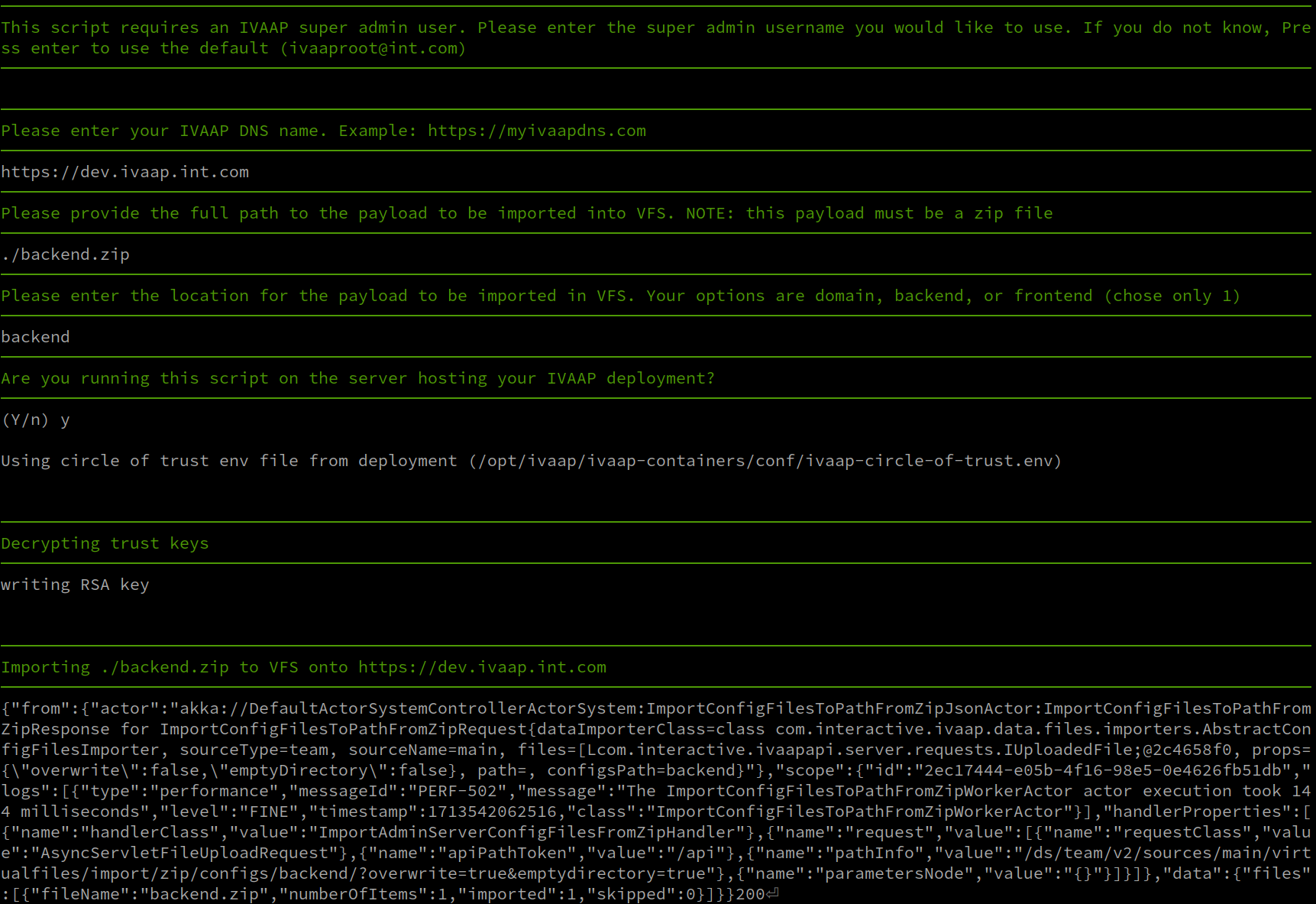
From a deployment operations perspective, it’s also possible to upload the zip files from the command line using curl against the IVAAP Adminserver api directly (/IVAAPServer). SLB has crafted an interactive script that can be found in the “ivaap-helpers” public repository’s scripts directory. There are also some default configuration templates in ivaap-helpers, below is a short example of use:
Backend Core and Data Nodes
Environment Variable Options
For more information, see the backend wiki page: https://sites.google.com/a/geotoolkit.net/ivaap-for-developers/configuring-ivaap/developer-configuration-options
The helm template has common backend variables already pre-configured in templates/_helpers.tpl
{{- define "ivaap.globalBackendNodeEnv" }}
  - name: IVAAP_CLUSTER_DATANODES
    value: "{{ include "ivaap.backendClusterDataNodes" . }}"
  - name: IVAAP_SEEDNODE_HOSTNAME
    value: "localhost"
  - name: IVAAP_CLUSTER_HOSTNAME
    value: "localhost"
  - name: IVAAP_INTERNAL_ENDPOINT
    value: "localhost:9000"
  - name: IVAAP_COMMON_BACKEND_SERVER_HOST
    value: "http://localhost:9000/ivaap/"
  - name: IVAAP_COMMON_ADMIN_SERVER_HOST
    value: "http://adminserver-service/IVAAPServer/"
  - name: IVAAP_SERVICES_TIME_OUT
    value: "120000"
  - name: IVAAP_HTTP_METHOD_TIMEOUT
    value: "300000"
{{- end }}
You can print the current list of live environment variables applied to a pod with the kubectl command.
user@linux:~$ kubectl exec ivaap-backend-deployment-6f5575b6ff-9wwnh -n ivaap -c epsgnode -- printenv
PATH=/opt/java/openjdk/bin:/usr/local/sbin:/usr/local/bin:/usr/sbin:/usr/bin:/sbin:/bin
HOSTNAME=ivaap-backend-deployment-6f5575b6ff-9wwnh
JAVA_HOME=/opt/java/openjdk
LANG=en_US.UTF-8
LANGUAGE=en_US:en
LC_ALL=en_US.UTF-8
JAVA_VERSION=jdk-21.0.7+6
IVAAP_CONTAINER_BASE_IMAGE_BUILD_TIMESTAMP=20250620T002603Z
IVAAP_CONTAINER_BASE_IMAGE_BUILD_TIMESTAMP_UNIX=1750379163
IVAAP_CONTAINER_BASE_IMAGE_FROM=eclipse-temurin:21-jdk-alpine
IVAAP_CONTAINER_BASE_IMAGE_STATIC_TAG=245634265005.dkr.ecr.us-west-2.amazonaws.com/ivaap/base-images-release:backendnode-base-alpine-3.0-20250620T002603Z
Any environment variable can be added to a node via .Values.nodEnvConfigMaps.<nodename>. This is a dynaic configmap that is created based on node names added under nodeEnvConfigMaps.
nodeEnvConfigMaps:
  playnode:
    IVAAP_ENVIRONMENT_VARIABLE: "VALUE"
.Values.nodEnvConfigMaps.<nodename> matches the node name under .Values.ivaapBackendNdoes. For example, the above playnode matches .Values.ivaapBackendNodes.coreNodes.playnode
ivaapBackendNodes:
  coreNodes:
    playnode:
      repoName: ivaap/backend/playnode
      tag: playnode-3.0-3-0af410b-20250708T223606Z
mongonode, we need to ensure the node name for .Values.nodEnvConfigMaps.<nodename> matches what is found in .Values.ivaapBackendNodes.dataNodes.mongonode:
ivaapBackendNodes:
  dataNodes:
    mongonode:
      enabled: false
      repoName: ivaap/backend/mongonode
      tag: mongonode-3.0-6-77b1f74-20250708T223606Z

# ----- mongonode variable applied below
nodeEnvConfigMaps:
  playnode:
    IVAAP_ENVIRONMENT_VARIABLE: "VALUE"
  mongonode:
    IVAAP_ENVIRONMENT_VARIABLE: "VALUE"
Tuning Memory Requirments
By default, most IVAAP data nodes ship with a max Java heap size of 2 GB. This suits most deployments, but can sometimes be beneficial to raise this limit for large datasets or other purposes.
Internally the nodes use a startup script that references an environment variable IVAAP_JVM_MAX_MEMORY. So the jvm Xmx value can be manipulated by updating this envar.
For example, setting the witsmlnode to 4gb (4096m) will look something like this under .Values.nodEnvConfigMaps.<nodename>:
nodeEnvConfigMaps:
  witsmlnode:
    IVAAP_JVM_MAX_MEMORY: "4G"
Custom JAVA_OPTS
It can be complicated or ambiguous to add to $JAVA_OPTS envars due to container contexts mixing in/outside of the container depending on the deployment type, so we have added an additional standalone environment variable in our node startup script as IVAAP_NODE_JAVA_OPTS.
For context, see startup script snippet here:
/bin/sh -c "/opt/ivaap/ivaap-playserver/deployment/ivaapnode/bin/${IVAAPNODE_NAME} -J-Dpidfile.path=/dev/null -J-Djava.io.tmpdir=${IVAAP_CONTAINER_TMP_DIR} -J-Xmx${IVAAP_JVM_MAX_MEMORY} ${IVAAP_NODE_JAVA_OPTS}"
nodeEnvConfigMaps:
  witsmlnode:
    IVAAP_NODE_JAVA_OPTS: "-Dcom.interactive.ivaap.data.WitsmlReadTimeOut=30000"
    IVAAP_JVM_MAX_MEMORY: "4G"
Kerberos Configuration for the Studio Connector
The Studio connector (petrelstudiodbnode) supports two SQL authentication schemes in the admin client: Password (SQL Server login / service account) and Kerberos (per-user AD credentials). Kerberos platform wiring is optional — required only when connectors use the Kerberos scheme.
For Password connectors, enable petrelstudiodbnode and configure host, database, and SQL credentials in the admin UI. No krb5.conf is needed. Once the deployment is running, the admin quickstart covers connector creation and testing: https://<IVAAP_FQDN>/admin/usermanual/gettingstarted/quickstart.html.
For Kerberos connectors, the JVM needs a krb5.conf describing your realm and KDCs, delivered as a configmap mounted at /etc/krb5.conf and referenced through IVAAP_NODE_JAVA_OPTS. This is secondary authentication for SQL access only — it does not configure how users log in to the IVAAP web application (see IVAAP Authentication). After platform Kerberos wiring, create the connector with scheme Kerberos in the admin UI (same quickstart URL as above).
ivaapBackendNodes:
  extraVolumes:
    - name: krb5-conf
      configMap:
        name: krb5-conf
  extraVolumeMounts:
    - name: krb5-conf
      mountPath: /etc/krb5.conf
      subPath: krb5.conf
      readOnly: true

nodeEnvConfigMaps:
  petrelstudiodbnode:
    IVAAP_NODE_JAVA_OPTS: "-Djava.security.krb5.conf=/etc/krb5.conf -Djavax.security.auth.useSubjectCredsOnly=false"
| Path | Guide |
|---|---|
Installer-managed k3s (ivaap install completed) |
Kerberos setup with the ivaap binary — ivaap kerberos setup |
| GitOps / multi-node / manual values | Manual Kerberos configuration |
| Prerequisites, verification, troubleshooting | Kerberos for the Studio Connector |
Kerberos and SQL Server TLS are separate concerns — for certificate errors on Test Connector, see Studio connector — Test Connector certificate error.
Tuning ActiveMQ
IVAAP’s connection to ActiveMQ is tuneable to increase retry counts and times when it could be useful due to different environments. By default this is set as shown in values.yaml section configmap, but can be configured in your deployment yaml.
configmap:
  backendactivemq:
    IVAAP_WS_MQ_CONN_RETRY_COUNT: 20
    IVAAP_WS_MQ_CONN_RETRY_INTERVAL: 5000
NGINX Reverse Proxy
IVAAP uses a customized NGINX reverse proxy for cross-pod communication. This proxy image has many customization options available to customize the deployment.
Adding a Custom Config
A custom NGINX configuration file can be added easily. To do this requires a few steps:
* Create a file with the custom config, indented 4 spaces.
* Create a configmap from the new file.
* Set .Values.ivaapProxy.proxy.customConf.enabled to true in your configuration yaml.
* Set .Values.configmap.proxy.IVAAP_PROXY_CUSTOM_CONF_ENABLED to true.
Below is an example of what the custom configuration file could look like. The structure is important and must be indented 4 spaces. Follow NGINX official documentation for creating custom configurations.
    location /api/ {
       proxy_pass https://<FQDN>.com/api/;
       add_header 'Access-Control-Allow-Origin' '*';
       add_header 'Access-Control-Allow-Methods' 'POST, GET, OPTIONS, DELETE, PUT';
       tcp_nodelay on;
       proxy_buffering off;
       proxy_connect_timeout 1d;
       proxy_send_timeout 1d;
       proxy_read_timeout 1d;
    }
Once this file is created, create a configmap named custom-nginx-conf using the full path of this new file.
kubectl create configmap custom-nginx-conf \
  --from-file=custom-nginx.conf=/path/to/custom-nginx.conf \
  -n ivaap
Now, simply set .Values.ivaapProxy.proxy.customConf.enabled and .Values.configmap.proxy.IVAAP_PROXY_CUSTOM_CONF_ENABLED to true in your deployment yaml, and re-deploy. Once the proxy pod is healthy, the easiest way to confirm is the exec in and cat the nginx configuration file and verify the new config is preset.
user@linux:$ ki exec <namespace> proxy
/ $ cat /etc/nginx/conf.d/https-k8s-nginx.conf
Updating Infrastructure passwords and Keys
IVAAP makes use of several passwords and keys uniquely pre-packaged for use once deployed. They are encrypted and base64 encoded so as not to leave them in plain text on the file system or configuration files, so to update them, the new passwords or keys must be encrypted. IVAAP uses its own encryption method, but this section will also touch on ActiveMQ passwords which use its own system from Apache.
Encrypting Sensitive Passwords for IVAAP Java Components
The following process will be used in multiple aspects of IVAAP configuration regarding encrypted values.
Should you ever need to update an encrypted password, a new one can be generated with the IVAAPCoreData jar.
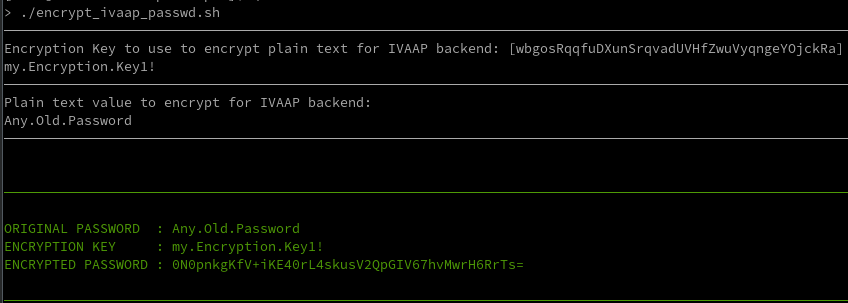
Once ready to encrypt a new password, select an appropriate encryption key and use the generation script found in our ivaap-helpers repo: ivaap-helpers/scripts/encrypt_ivaap_passwd.sh. This interactive script will take input of the plain text password, encryption key, and return the encrypted value. The Encryption key configuration varies depending on the use in IVAAP, but should be next to the encrypted configuration.
Updating Circle of Trust Keys
Circle of Trust keys are needed for authentication between IVAAP components. By default, IVAAP deliveries come preconfigured with unique keys and passwords with no additional changes required, but should you wish to rotate keys or create a new unique deployment, these are the steps needed to change the Circle of Trust keys.
The Circle of Trust uses 2048 bit RSA keys, and the private key must be PKCS#8 format. The private key must then be encrypted with an AES encryption key of your choice, using the same encryption method as was used for service accounts in previous IVAAP versions, using an IVAAPCoreData jar.
The easiest way to create the circle of trust keys is to use our circle-of-trust.sh script in ivaap-helpers.
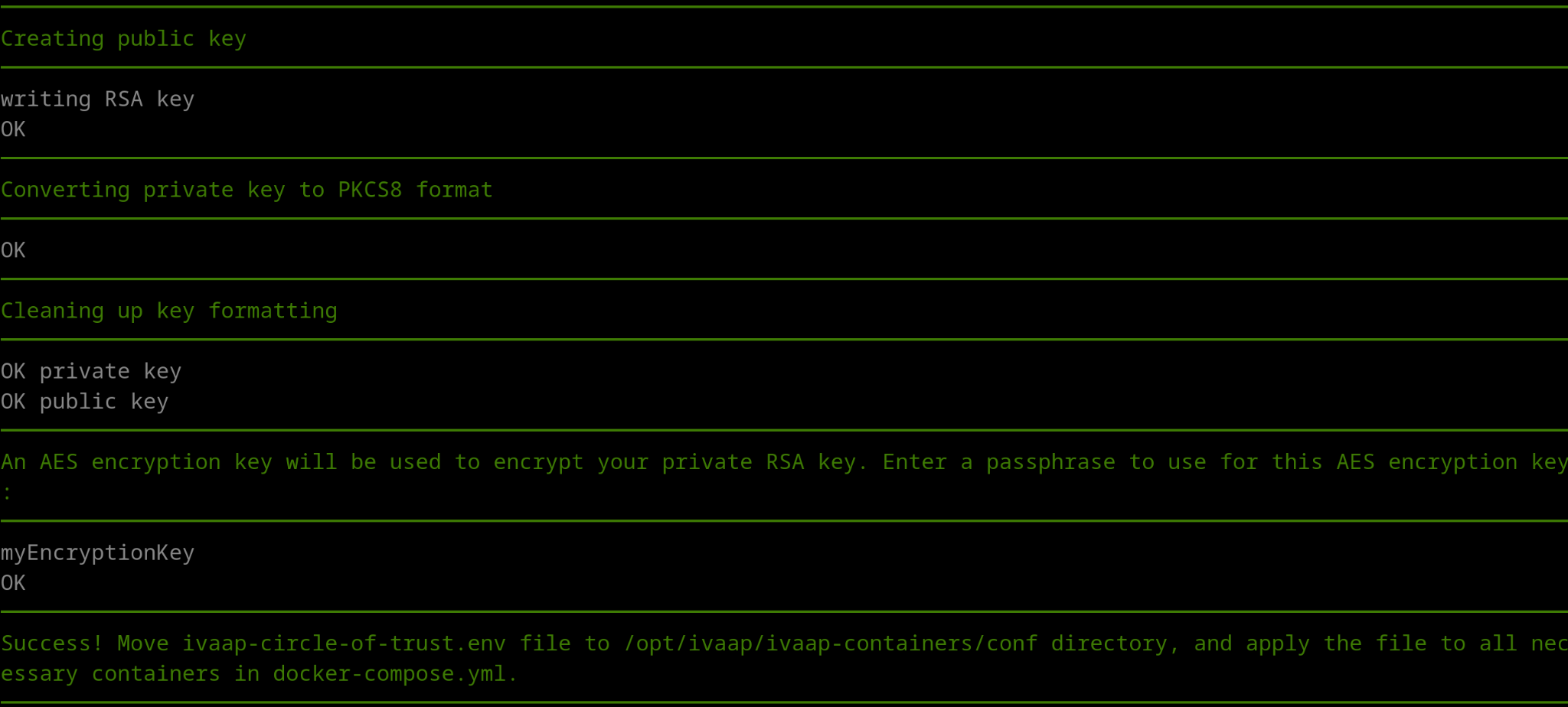
The script will do all the work for you by creating all of the necessary RSA keys, prompting you to enter a password to use as the encryption key, and using that encryption key to encrypt the RSA private key.
This will create a file named ivaap-circle-of-trust.env, which will contain the three values needed for circle of trust configuration. Once you have these new values, they need to be updated in your deployment yaml under .Values.secrets.type.k8sSecrets:
secrets:
  type:
    k8sSecrets:
      circle-of-trust-secrets:
        IVAAP_TRUST_PRIVATE_AES_ENCRYPTION_KEY: "<aes-encryption-key>"
        IVAAP_TRUST_PRIVATE_KEY: "<encoded encrypted-pkcs8-private-key>"
        IVAAP_TRUST_PUBLIC_KEY: "<encoded public-key>"
Updating ActiveMQ Password
Starting with IVAAP 2026.1, the packaged ActiveMQ broker uses a zeroconf image, and its credentials are managed as four passwords stored in the activemq-conf-secrets Kubernetes Secret:
ACTIVEMQ_ADMIN_PASSWORDACTIVEMQ_IVAAP_PASSWORDACTIVEMQ_SYSTEM_PASSWORDACTIVEMQ_IVAAPCLIENT_PASSWORD
The broker and the backend play/mqgateway nodes both read this one Secret, so a single update covers both — but the pods must be restarted for the change to take effect.
This procedure applies only to IVAAP 2026.1 and later (zeroconf ActiveMQ broker image, backend nodes >= 3.1-35). Older images do not use these environment variables; for earlier versions, see Pre-2026.1 Deployments (Legacy) below.
The commands below assume namespace ivaap, Helm release ivaap, chart at /opt/ivaap/IVAAPHelmTemplate, and values at /opt/ivaap/ivaap.values.yaml. Adjust to match your instance.
Before rotating, back up the current Secret:
kubectl get secret activemq-conf-secrets -n ivaap -o yaml \
  > "activemq-conf-secrets.ivaap.$(date +%Y%m%dT%H%M%SZ).bak.yaml"
Rotation Method 1 — Auto-Generate New Random Passwords
Delete the Secret and run a Helm upgrade; the chart will regenerate the Secret with fresh random passwords:
kubectl delete secret activemq-conf-secrets -n ivaap
helm upgrade ivaap /opt/ivaap/IVAAPHelmTemplate -n ivaap -f /opt/ivaap/ivaap.values.yaml
Rotation Method 2 — Set Specific Passwords
Add this block to your values file under the top-level secrets: key (NOT under k8sSecrets), with the values quoted, then upgrade:
secrets:
  activemq:
    adminPassword: 'CHANGE_ME_1'
    ivaapPassword: 'CHANGE_ME_2'
    systemPassword: 'CHANGE_ME_3'
    ivaapclientPassword: 'CHANGE_ME_4'
helm upgrade ivaap /opt/ivaap/IVAAPHelmTemplate -n ivaap -f /opt/ivaap/ivaap.values.yaml
Restart the Pods (Required)
The new Secret is not used until the pods restart:
kubectl delete pod -n ivaap -l app=ivaap-activemq
kubectl delete pod -n ivaap -l app=ivaap-backend
Verify the Rotation
# 1) Secret holds the new values
for k in ACTIVEMQ_ADMIN_PASSWORD ACTIVEMQ_IVAAP_PASSWORD ACTIVEMQ_SYSTEM_PASSWORD ACTIVEMQ_IVAAPCLIENT_PASSWORD; do
  echo -n "$k = "; kubectl get secret activemq-conf-secrets -n ivaap -o jsonpath="{.data.$k}" | base64 -d; echo
done

# 2) Pods are running
kubectl get pods -n ivaap | grep -E 'activemq|backend'

# 3) Broker connection is healthy
kubectl exec -n ivaap deploy/ivaap-backend-deployment -c playnode -- \
  curl -s http://localhost:9000/ivaap/api/v1/cluster/services/health
# expect: "health" : "healthy"  and  "activeMQConnectionStatus" : { "healthy" : true }
Rotating on ArgoCD-Managed Instances
On ArgoCD-managed deployments, ArgoCD cannot run the Helm lookup function, so the Secret is frozen with ignoreDifferences (/data) and the RespectIgnoreDifferences sync option. To rotate, delete the Secret, let ArgoCD recreate it (with fresh random passwords), then restart the pods. The example below uses an Application named ivaap-202601 (in the argocd namespace) with workload namespace ivaap-202601 — adjust to match your instance. It is recommended to validate these steps on a non-production instance first.
-
Delete the Secret:
kubectl delete secret activemq-conf-secrets -n ivaap-202601 -
Make ArgoCD recreate it — use whichever you have access to:
Option A — argocd CLI:
argocd app sync ivaap-202601
Option B — kubectl only (no argocd CLI / login): if the Application has automated sync, ArgoCD recreates the Secret on its own within a few minutes. To trigger it immediately, request a hard refresh:
kubectl -n argocd annotate application ivaap-202601 argocd.argoproj.io/refresh=hard --overwrite
kubectl -n argocd patch application ivaap-202601 --type merge \
  -p '{"operation":{"initiatedBy":{"username":"kubectl"},"sync":{"syncStrategy":{"apply":{}}}}}'
- Confirm the Secret is back (4 keys), then restart the pods:
kubectl get secret activemq-conf-secrets -n ivaap-202601
kubectl delete pod -n ivaap-202601 -l app=ivaap-activemq
kubectl delete pod -n ivaap-202601 -l app=ivaap-backend
Pre-2026.1 Deployments (Legacy)
IVAAP versions prior to 2026.1 use standard practices built into ActiveMQ to encrypt its passwords:
https://activemq.apache.org/encrypted-passwords
In these versions, the ActiveMQ message broker communicates with the backend via an encrypted password called “ivaap.password.” This password is configurable for both the backend Playnode and MQGatewaynode, as well as ActiveMQ itself. The environment variable for this configuration is IVAAP_WS_MQ_QUEUE_PASSWORD.
You can shell into the ActiveMQ pod and follow the same procedures from Apache’s documentation:
user@linux:~$ kubectl exec -it ivaap-activemq-deployment-6b6956684f-9v5c7 -n ivaap -- bash

cb66558b530:~$ bin/activemq encrypt --password activemq --input myNewPassword
...
...
...
Encrypted text: kT/L1Z0xTEkmg2CrPf0NmMyZhPmPNpUE
Once a new encrypted password has been generated, it will need to be applied to the environment variable IVAAP_WS_MQ_QUEUE_PASSWORD in the secrets section of your deployment yaml underneath .Values.secrets.type.k8sSecrets.activemq-conf-secrets. Please note that the new encrypted password is inside “ENC().” This is required and lets ActiveMQ know the password is encrypted.
# ---- IVAAP_WS_MQ_QUEUE_PASSWORD="ENC(kT/L1Z0xTEkmg2CrPf0NmMyZhPmPNpUE)"

secrets:
  type:
    k8sSecrets:
      activemq-conf-secrets:
        IVAAP_WS_MQ_QUEUE_PASSWORD: "<base64-encoded-activemq-password>"
Updating Postgres Password
This section covers updating the Postgres password as it is used by IVAAP, not how to change the password on particular Postgres instances/types/servers. Updating the Postgres password means updating it in the Adminserver.
Adminserver (Java)
Follow the encryption process detailed above in ‘Encrypting Sensitive Passwords for IVAAP Java components,’ then set the following envars in the your deployment yaml under the secrets section.
adminserver-conf-secrets:
  IVAAP_SERVER_ADMIN_DATABASE_ENCRYPTION_KEY: "<Encoded Key>"
  IVAAP_SERVER_ADMIN_DATABASE_ENCRYPTED_PASSWORD: "<Encrypted & Encoded Password>"
Relocating and Splitting Up Infrastructure Hosts
For convenience, IVAAP typically comes packaged to run on container orchestration platforms such as Kubernetes, K3s, or Openshift, and can be deployed to cloud-managed services like AWS EKS or AZURE AKS. This architecture is more flexible and production ready. While the platform can run on a single environment for development, testing, or production, optimal performance is achieved by distributing key components, such as the database and backend services to separate hosts.
Relocating Postgres Database
The first piece of infrastructure to consider relocating is the Postgres database. The process outlined here will start with a database dump from an existing database, so the first step is to make that dump as outlined in the ‘Making Backups’ section of this guide. Once a valid dump file is in hand, we can proceed with the switch. For steps on creating a postgres dump, refer to the Making and Restoring Backups section of the IVAAP Operations guide. Additionally, refer to the ivaap_pgdump section of the IVAAP Helpers guide.
At this point, restore the dump made on the new host or managed service. This will vary depending on target, so please refer to their specific documentation, or else official Postgres documentation.
Now adjust configuration on the IVAAP instance for the new Postgres host. Start by including newly secret managed encrypted and encoded values into your deployment yaml.
These additions to the environment variables below will authenticate the adminserver to Postgres.
adminserver-conf-secrets:
  IVAAP_SERVER_ADMIN_DATABASE_HOST: "<database_hostname>
  IVAAP_SERVER_ADMIN_DATABASE_NAME: "<database_name>"
  IVAAP_SERVER_ADMIN_DATABASE_PORT: "<database_port>"
  IVAAP_SERVER_ADMIN_DATABASE_USERNAME: "<database_username>"
  IVAAP_SERVER_ADMIN_DATABASE_ENCRYPTION_KEY: "<database_encrypted_key"
  IVAAP_SERVER_ADMIN_DATABASE_ENCRYPTED_PASSWORD: "database_encrypted_password>"
Restoring Database into a Zalando Postgres Operator
After taking a Postgres dump from an IVAAP K3s environment using Zalando Postgres Operator, it is very important to drop the current database first from the separate IVAAP K3s environment that you are trying to import the Postgres dump into. Loading the dump on top of a current or seeded database from the ivaap binary install will fail and all the CREATE SCHEMA/Create Table collides with "already exists", and the COPY loads fail or violate primary keys. This will leave a half-merged, broken database. The destination ivaapdb must be empty before the restore.
Note:
ivaap installin the current release has no command-line flag for supplying your own dump; a fresh install always seeds from the baseline dump bundled in the installer. Loading your own data is therefore a manual step performed after a normal install, as documented below.
Record a baseline to help validate
It is helpful to first record a baseline from where the initial Postgres is located to help validate against after the restore.
kubectl exec -n ivaap-postgres ivaap-postgres-cluster-0 -- \
  psql -U ivaapserver -d ivaapdb -t -c \
  "select count(*) from information_schema.tables
   where table_schema not in ('pg_catalog','information_schema','metric_helpers','user_management');"
Drop the installed database on the destination
Scale the adminserver down first (you cannot drop a database that has active sessions), then drop and recreate an empty ivaapdb. Inside the Spilo Postgres pod the postgres superuser connects locally without a password, so no secret lookup is needed:
kubectl scale deploy/adminserver-deployment --replicas=0 -n ivaap

kubectl exec -n ivaap-postgres ivaap-postgres-cluster-0 -- \
  psql -U postgres -d postgres -c \
  "SELECT pg_terminate_backend(pid) FROM pg_stat_activity WHERE datname='ivaapdb';"

kubectl exec -n ivaap-postgres ivaap-postgres-cluster-0 -- \
  psql -U postgres -d postgres -c "DROP DATABASE ivaapdb;"

kubectl exec -n ivaap-postgres ivaap-postgres-cluster-0 -- \
  psql -U postgres -d postgres -c "CREATE DATABASE ivaapdb OWNER ivaapserver;"
Import the dump into the empty database
If the dump is gzip-compressed (from ivaap_pgdump), uncompress it first. Replace <timestamp> with the actual filename:
gunzip -k ivaap-postgres-ivaap-<timestamp>.sql.gz

kubectl cp ivaap-postgres-ivaap-<timestamp>.sql \
  ivaap-postgres/ivaap-postgres-cluster-0:/tmp/import.sql

kubectl exec -n ivaap-postgres ivaap-postgres-cluster-0 -- \
  psql -U ivaapserver -d ivaapdb -v ON_ERROR_STOP=0 -f /tmp/import.sql
invalid command \restrict / \unrestrict, psql meta-commands emitted by a newer pg_dump; ignored by older psql.
- unrecognized configuration parameter "transaction_timeout", a newer GUC in the dump header; the SET is skipped.
Any other error is a real failure and should be resolved before continuing. In particular, an "already exists" error on the int schema or IVAAP tables means the database was not empty (the drop step did not run). A freshly recreated database legitimately contains a few base extension objects (pg_stat_statements, pg_stat_kcache); these do not conflict because the dump recreates its extensions with CREATE EXTENSION IF NOT EXISTS.
Point the adminserver at the restored database
The Postgres cluster on the destination host has its own ivaapserver password. Follow the encryption process in 'Encrypting Sensitive Passwords for IVAAP Java components', then set the connection values in the deployment yaml under the secrets section:
adminserver-conf-secrets:
  IVAAP_SERVER_ADMIN_DATABASE_HOST: "ivaap-postgres-cluster.ivaap-postgres.svc.cluster.local"
  IVAAP_SERVER_ADMIN_DATABASE_NAME: "ivaapdb"
  IVAAP_SERVER_ADMIN_DATABASE_PORT: "5432"
  IVAAP_SERVER_ADMIN_DATABASE_USERNAME: "ivaapserver"
  IVAAP_SERVER_ADMIN_DATABASE_ENCRYPTION_KEY: "<Encoded Key>"
  IVAAP_SERVER_ADMIN_DATABASE_ENCRYPTED_PASSWORD: "<Encrypted & Encoded Password>"
ivaapserver password and encrypt it with either the ivaap-helpers/scripts/encrypt_ivaap_passwd.sh script or the adminserver's AES tool:
kubectl get secret \
  ivaapserver.ivaap-postgres-cluster.credentials.postgresql.acid.zalan.do \
  -n ivaap-postgres -o jsonpath='{.data.password}' | base64 -d; echo
kubectl scale deploy/adminserver-deployment --replicas=1 -n ivaap
kubectl exec -n ivaap deploy/adminserver-deployment -- \
  bash -c "java -cp /opt/ivaap/adminserver/lib/IVAAPCoreData*.jar \
  com.interactive.ivaap.data.encryption.AesEncryption 'Encryption_Key' '<password-from-above>'"
adminserver-conf-secrets, apply them with ivaap-restart (or helm upgrade --install with the standard two-values-file pattern) and confirm the adminserver pod picked up the new environment variables.
If the source instance stored values encrypted with its Circle-of-Trust or team encryption key (for example, data-connector credentials), reuse the same
IVAAP_TRUST_PRIVATE_AES_ENCRYPTION_KEY,IVAAP_TRUST_PRIVATE_KEY,IVAAP_TRUST_PUBLIC_KEY, andIVAAP_COMMON_TEAM_ENCRYPTION_KEYon the destination. Otherwise those encrypted values will not decrypt after the restore.
Validate
Confirm the restored database matches the source baseline, then verify the application (log in to the Admin Client and confirm data and connectors resolve):
kubectl exec -n ivaap-postgres ivaap-postgres-cluster-0 -- \
  psql -U ivaapserver -d ivaapdb -t -c \
  "select count(*) from information_schema.tables
   where table_schema not in ('pg_catalog','information_schema','metric_helpers','user_management');"
Relocating to a managed service (Azure Database for PostgreSQL Flexible Server)
The steps above assume the destination is another self-managed (Zalando/Spilo) Postgres reached over the pod's local socket. Moving to a managed service such as Azure Database for PostgreSQL Flexible Server reuses the same dump-and-restore idea. The one-time server setup — provisioning the Flexible Server, allow-listing extensions, and creating the empty ivaapdb — is already covered in the IVAAP Database Administration guide. Complete those steps first, then return here for the migration-specific mechanics:
- Azure Resource Setup — provision the Flexible Server with admin username
ivaapserverand PostgreSQL authentication. For a relocation, provision the server at the same PostgreSQL major version as your source dump (a k3s cluster deployed byivaap installruns Zalando PG17 and must be restored onto a PG17 server). - Configuring Extensions inside Azure — allow-list extensions in
azure.extensionsbefore restoring. For a relocation dump, inventory the source with\dxfirst — see Relocating an existing database. - Create Database for IVAAP in Azure — create the empty
ivaapdbtarget (the dump contains noCREATE DATABASE).
Three managed-service constraints differ from the self-managed restore above:
- The managed admin role is not a Postgres superuser, and the Spilo-only extensions pg_stat_kcache and set_user do not exist on Azure. A dump taken from Zalando/Spilo Postgres will reference them; the resulting errors are benign and do not halt the import.
- Every other extension the dump creates must be allow-listed in azure.extensions (see the link above) before the restore can create it.
- There is no local postgres socket; you restore over the network with psql and TLS.
1. Prepare an Azure-ready dump. The ivaap_pgdump helper already writes a portable dump (--no-owner --no-acl, with the metric_helpers/user_management schemas excluded) — exactly what a managed target needs: no ownership/grant statements referencing Spilo roles (postgres, robot_zmon, admin) and no Spilo-internal schemas.
2. Restore exactly once into the empty database. Restore only once onto the freshly created, empty ivaapdb; a second pass raises already exists errors and can append duplicate rows into tables without a primary key. Use a psql client whose major version matches the server (a psql 16 client against PG17 breaks meta-commands such as \l) — see Requirements in the IVAAP Operations guide. TLS is enforced by Azure, so sslmode=require is optional (libpq negotiates TLS by default):
psql "host=<server>.postgres.database.azure.com port=5432 user=ivaapserver dbname=ivaapdb sslmode=require" -v ON_ERROR_STOP=0 -f ./ivaap-azure-ready-dump-<timestamp>.sql
ON_ERROR_STOP=0 lets psql continue past the benign header errors noted above. Scan the full output — any error other than those is a real failure even when the command exits 0.
3. Point the adminserver at the Azure server. Set the connection values in adminserver-conf-secrets exactly as in Point the adminserver at the restored database above, substituting the Azure host:
adminserver-conf-secrets:
  IVAAP_SERVER_ADMIN_DATABASE_HOST: "<server>.postgres.database.azure.com"
  IVAAP_SERVER_ADMIN_DATABASE_NAME: "ivaapdb"
  IVAAP_SERVER_ADMIN_DATABASE_PORT: "5432"
  IVAAP_SERVER_ADMIN_DATABASE_USERNAME: "ivaapserver"
  IVAAP_SERVER_ADMIN_DATABASE_ENCRYPTION_KEY: "<Encoded Key>"
  IVAAP_SERVER_ADMIN_DATABASE_ENCRYPTED_PASSWORD: "<Encrypted & Encoded Password>"
ivaap-restart (or helm upgrade --install with the standard two-values-file pattern), then confirm the adminserver pod picked up the new environment variables.
4. Validate and log in. Confirm the restored table count matches the source baseline recorded earlier, then log in to IVAAP with the Admin and SuperAdmin users from the imported database and confirm projects, connectors, and data resolve.
Relocating Mongo Database
If the mongodb instances have moved, all that must be changed is in the Admin UI in the browser. Change relevant Mongo connectors hosts. See Admin UI Manual for more details.
IVAAP in Production Environments
The preceding guide assumes IVAAP is deployed on a single host for ease in setting up a poc/test environment. When considering deploying IVAAP for use in production, a few considerations are recommended:
Persisting Data Stores Externally
It’s recommended to move persisted data stores to a different host than the one IVAAP front/backends are deployed to for reliability, this includes MongoDB, PostgreSQL, and ActiveMQ in descending order of priority per performance. See Relocating and Splitting Up Infrastructure Hosts section in IVAAP Configuration chapter.
Logging Configuration
INT recommends shipping logs to an external server for production environments to better monitor/alert the health of the system. We have separate documents regarding the configuration of ELK with IVAAP, or alternatively use a local mirroring tool like Dozzle.
Also see the section under Troubleshooting: Enable Additional Logging Levels (Debug) to adjust the log level for components as needed.
Further reading:
- Log Shipping
- https://kubernetes.io/docs/concepts/cluster-administration/logging/
- https://www.cncf.io/blog/2023/07/03/kubernetes-logging-best-practices/
- ELK
- https://www.redhat.com/sysadmin/what-is-elk-stack
- ELK with IVAAP (ask SLB)
- Dozzle
- https://hub.docker.com/r/amir20/dozzle/
- Dozzle with IVAAP (ask SLB)